
How to Use a Live Sound Card? Step-by-Step Guide to Installing and Debugging Your Sound Card
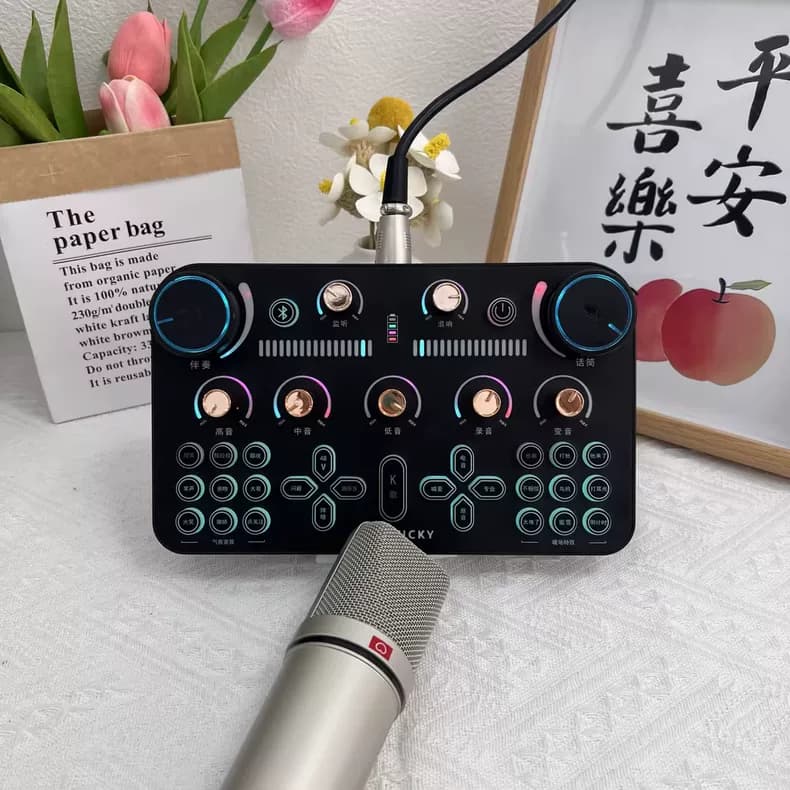
Delving into the realm of live audio? A live sound card could be your key ally. But how exactly should you utilize one? Fear not, this guide will demystify the entire process - from installation to setup and troubleshooting.
A live sound card is a vital tool that links your microphone, instruments, and computer, guaranteeing top-notch sound production. They mitigate latency issues, amplify sound quality, and offer diverse effects to enrich your audio. Regardless of your expertise, mastering your live sound card can revolutionize your workflow.

Let's delve into the specifics of setting up and debugging your live sound card.
1. Comprehending the Role of a Live Sound Card
Understanding the fundamental role of a live sound card is paramount. Essentially, it's an external audio interface converting analog signals (such as voice or instrument sounds) into digital signals comprehensible by your computer. These cards often feature multiple input/output options, built-in preamps, and occasionally onboard effects.
Signal Conversion: The primary function of a sound card is to transform analog audio signals into digital form and back. This enhances your computer's sound processing capabilities.
Improving Sound Quality: While laptops' integrated sound cards can falter, live sound cards deliver superior fidelity.
Reducing Latency: They help lessen the delay between input and output sound, crucial for live performances.
Effect Processing: Some live sound cards incorporate effects such as reverb, echo, and pitch correction, enriching the overall live sound experience.
Understanding this basic functionality now paves the way for a streamlined installation and setup procedure.
2. Comprehensive Setting Up of Your Live Sound Card: A Step-by-Step Guide
Step 1: Unpack and Inspect
Got your live sound card and excited to get started? Open it carefully and verify the following:
The sound card itself
Connection cables (USB or others)
Installation CDs or software (if included)
User manual and warranty information
Ensure all components are present and undamaged. A quick inspection can prevent future headaches!
Step 2: Install Required Drivers
Your live sound card's effectiveness hinges on compatible drivers. Modern sound cards often boast plug-and-play compatibility, but specific drivers may still be needed.
Find Drivers: Visit the manufacturer’s site for the most recent drivers. The drivers on the CD might be obsolete.
Install Drivers: Follow the prompts to download and install the required drivers. Generally, it involves merely clicking the download button and executing the setup file.
Neglecting this step can result in performance issues or a nonfunctional sound card.
Step 3: Connect Your Sound Card to the Computer
With the drivers installed, it's time to link your sound card to your computer. This varies depending on your device type (USB, FireWire, etc.) Here's how:
Connect the Cable: Plug one end of the cable into your sound card and the other into your computer’s port securely.
Power Up: If your sound card necessitates an external power supply, plug it in and switch it on. Most USB sound cards draw power directly from the computer.
Step 4: Audio Configuration
Upon connection of your live sound card, adjust its settings to ensure optimal operation.
Access Sound Settings: Navigate to your PC's sound settings. In Windows, locate this in the Control Panel under "Sound." For Mac, access "System Preferences" followed by "Sound."
Choose the Sound Card: From the list of input/output devices, designate your live sound card as the primary. This signals to the system that the card will process audio.
Fine-tune Volume Levels: Verify that both input and output volumes are appropriately adjusted. Excessive volume may cause distortion; insufficient volume could result in weak sound.
Step 5: Test Your Setup
Assessment is essential! Verify full functionality prior to launch or recording.
Connect Mic: Attach a microphone to your sound card and verify signal reception via indicator lights.
Play Music: Conduct a sound test with a music track or sound test file to examine output quality. Pay attention to clarity, volume levels, and potential noise/distortion. Verify Latency: Ensure seamless synchronization during live instrumentation.
3. Troubleshooting Your Live Sound Card
Despite optimal setup, occasional hiccups may occur. Don't panic if your sound card underperforms. Here's guidance on resolving common issues.
Issue 1: Absence of Sound Output
Ensure Connections: Confirm all cables are securely attached. Loose connections could be causing the problem.
Audio Settings: Verify your sound card is set as the default device in your audio settings.
Software Glitches: Reboot your computer. A simple restart can resolve the issue.
Issue 2: Subpar Sound Quality
Driver Update: Ensure your drivers are current. Outdated drivers can lead to compatibility issues and diminished sound quality.
Cable Quality: Utilize superior cables for connections. Budget cables can introduce noise and diminish sound clarity.
Interference: Position your sound card away from interfering electronics.
Issue 3: Latency Issues
Buffer Size: Modify the buffer size in your sound card’s settings. Lowering it reduces latency but might induce glitches. Discover the ideal setting for your system.
Close Unnecessary Programs: Overloading your CPU with numerous applications can result in latency issues. Terminate unnecessary processes.
Issue 4: Non-detection of Input
Check Phantom Power: For condenser microphones, ensure phantom power (+48V) is enabled on your sound card.
Microphone Compatibility: Not all microphones are compatible with all sound cards. Review the specifications.
Port Issues: Attempt connecting the microphone to another port on the sound card.
4. Frequently Asked Questions about Live Sound Cards
Can a live sound card function with a laptop? Indeed! Most live sound cards cater to both laptops and desktops, provided the laptop possesses requisite ports (e.g., USB).
Do I require specific software for a live sound card? Although many sound cards ship with proprietary software, they can also integrate with generic audio software such as Audacity, GarageBand, or professional DAWs like Pro Tools.
Is a live sound card indispensable for podcasting? If enhancing audio quality and implementing real-time effects is your aim, a live sound card is strongly advised. It offers enhanced sound control and mitigates latency.
How to utilize a live sound card with a mixer? Connect the mixer output to the live sound card input. This configuration enables you to manipulate the mixer controls while leveraging the sound card’s digital conversion and processing prowess. 5. Conclusion
Employing a live sound card can substantially enhance your audio quality, regardless of whether you're streaming, recording, or performing live. By comprehending the detailed procedure for utilizing a live sound card and possessing knowledge of sound card installation and debugging, you're well-positioned to master your audio setup. Remember to routinely update your drivers, inspect your connections, and experiment with settings to achieve the perfect sound.
By following these steps, you're not merely learning to operate a live sound card; you're unlocking the potential for professional-level audio production directly from your home or studio. So, seize this opportunity and let your voice resonate – loudly and clearly!
A live sound card is a vital tool that links your microphone, instruments, and computer, guaranteeing top-notch sound production. They mitigate latency issues, amplify sound quality, and offer diverse effects to enrich your audio. Regardless of your expertise, mastering your live sound card can revolutionize your workflow.
Let's delve into the specifics of setting up and debugging your live sound card.
1. Comprehending the Role of a Live Sound Card
Understanding the fundamental role of a live sound card is paramount. Essentially, it's an external audio interface converting analog signals (such as voice or instrument sounds) into digital signals comprehensible by your computer. These cards often feature multiple input/output options, built-in preamps, and occasionally onboard effects.
Signal Conversion: The primary function of a sound card is to transform analog audio signals into digital form and back. This enhances your computer's sound processing capabilities.
Improving Sound Quality: While laptops' integrated sound cards can falter, live sound cards deliver superior fidelity.
Reducing Latency: They help lessen the delay between input and output sound, crucial for live performances.
Effect Processing: Some live sound cards incorporate effects such as reverb, echo, and pitch correction, enriching the overall live sound experience.
Understanding this basic functionality now paves the way for a streamlined installation and setup procedure.
2. Comprehensive Setting Up of Your Live Sound Card: A Step-by-Step Guide
Step 1: Unpack and Inspect
Got your live sound card and excited to get started? Open it carefully and verify the following:
The sound card itself
Connection cables (USB or others)
Installation CDs or software (if included)
User manual and warranty information
Ensure all components are present and undamaged. A quick inspection can prevent future headaches!
Step 2: Install Required Drivers
Your live sound card's effectiveness hinges on compatible drivers. Modern sound cards often boast plug-and-play compatibility, but specific drivers may still be needed.
Find Drivers: Visit the manufacturer’s site for the most recent drivers. The drivers on the CD might be obsolete.
Install Drivers: Follow the prompts to download and install the required drivers. Generally, it involves merely clicking the download button and executing the setup file.
Neglecting this step can result in performance issues or a nonfunctional sound card.
Step 3: Connect Your Sound Card to the Computer
With the drivers installed, it's time to link your sound card to your computer. This varies depending on your device type (USB, FireWire, etc.) Here's how:
Connect the Cable: Plug one end of the cable into your sound card and the other into your computer’s port securely.
Power Up: If your sound card necessitates an external power supply, plug it in and switch it on. Most USB sound cards draw power directly from the computer.
Step 4: Audio Configuration
Upon connection of your live sound card, adjust its settings to ensure optimal operation.
Access Sound Settings: Navigate to your PC's sound settings. In Windows, locate this in the Control Panel under "Sound." For Mac, access "System Preferences" followed by "Sound."
Choose the Sound Card: From the list of input/output devices, designate your live sound card as the primary. This signals to the system that the card will process audio.
Fine-tune Volume Levels: Verify that both input and output volumes are appropriately adjusted. Excessive volume may cause distortion; insufficient volume could result in weak sound.
Step 5: Test Your Setup
Assessment is essential! Verify full functionality prior to launch or recording.
Connect Mic: Attach a microphone to your sound card and verify signal reception via indicator lights.
Play Music: Conduct a sound test with a music track or sound test file to examine output quality. Pay attention to clarity, volume levels, and potential noise/distortion.
3. Troubleshooting Your Live Sound Card
Despite optimal setup, occasional hiccups may occur. Don't panic if your sound card underperforms. Here's guidance on resolving common issues.
Issue 1: Absence of Sound Output
Ensure Connections: Confirm all cables are securely attached. Loose connections could be causing the problem.
Audio Settings: Verify your sound card is set as the default device in your audio settings.
Software Glitches: Reboot your computer. A simple restart can resolve the issue.
Issue 2: Subpar Sound Quality
Driver Update: Ensure your drivers are current. Outdated drivers can lead to compatibility issues and diminished sound quality.
Cable Quality: Utilize superior cables for connections. Budget cables can introduce noise and diminish sound clarity.
Interference: Position your sound card away from interfering electronics.
Issue 3: Latency Issues
Buffer Size: Modify the buffer size in your sound card’s settings. Lowering it reduces latency but might induce glitches. Discover the ideal setting for your system.
Close Unnecessary Programs: Overloading your CPU with numerous applications can result in latency issues. Terminate unnecessary processes.
Issue 4: Non-detection of Input
Check Phantom Power: For condenser microphones, ensure phantom power (+48V) is enabled on your sound card.
Microphone Compatibility: Not all microphones are compatible with all sound cards. Review the specifications.
Port Issues: Attempt connecting the microphone to another port on the sound card.
4. Frequently Asked Questions about Live Sound Cards
Can a live sound card function with a laptop? Indeed! Most live sound cards cater to both laptops and desktops, provided the laptop possesses requisite ports (e.g., USB).
Do I require specific software for a live sound card? Although many sound cards ship with proprietary software, they can also integrate with generic audio software such as Audacity, GarageBand, or professional DAWs like Pro Tools.
Is a live sound card indispensable for podcasting? If enhancing audio quality and implementing real-time effects is your aim, a live sound card is strongly advised. It offers enhanced sound control and mitigates latency.
How to utilize a live sound card with a mixer? Connect the mixer output to the live sound card input. This configuration enables you to manipulate the mixer controls while leveraging the sound card’s digital conversion and processing prowess.
Employing a live sound card can substantially enhance your audio quality, regardless of whether you're streaming, recording, or performing live. By comprehending the detailed procedure for utilizing a live sound card and possessing knowledge of sound card installation and debugging, you're well-positioned to master your audio setup. Remember to routinely update your drivers, inspect your connections, and experiment with settings to achieve the perfect sound.
By following these steps, you're not merely learning to operate a live sound card; you're unlocking the potential for professional-level audio production directly from your home or studio. So, seize this opportunity and let your voice resonate – loudly and clearly!