How to Connect Open Ear Headphones
How to Connect Open Ear Headphones: Step-by-Step Guide
One of the most common questions new users ask is: how to connect open ear headphones? While most models use Bluetooth, connection steps can vary slightly depending on your device and brand. Whether you’re pairing with an iPhone, Android phone, laptop, or even a smart TV, this guide will walk you through every step—from basic Bluetooth pairing to troubleshooting and advanced features.
Basic Bluetooth Pairing for Open Ear Headphones
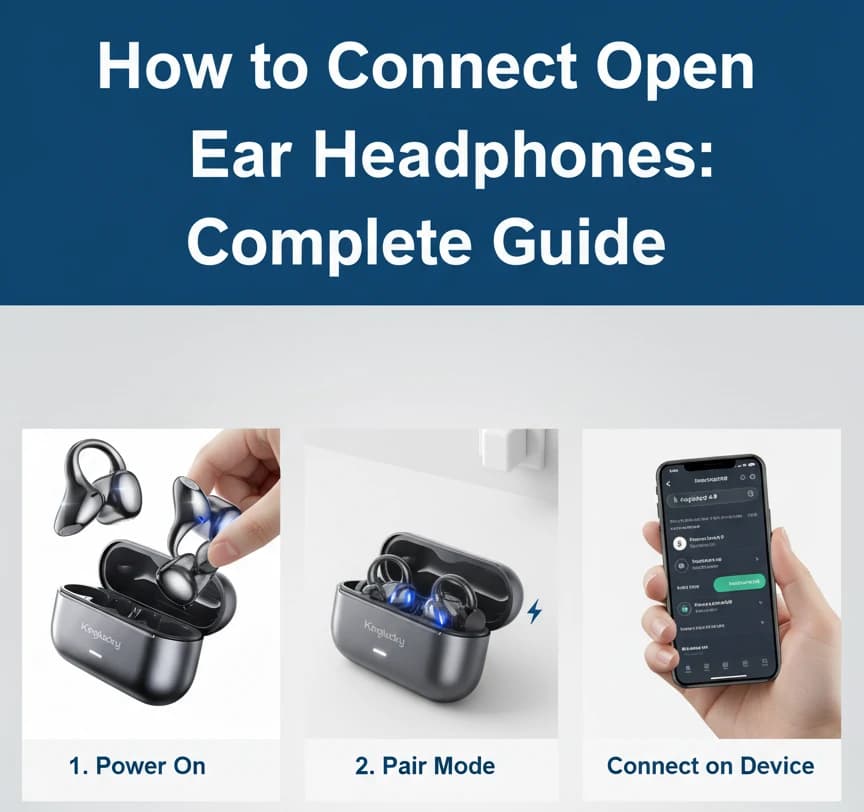
Most open ear headphones Bluetooth pairing follows a universal process:
- Turn on your headphones: Press and hold the power button until you see a blinking LED light or hear a voice prompt saying “pairing mode.”
- Open Bluetooth settings on your device: Go to Settings → Bluetooth and ensure it’s switched on.
- Select your headphones: In the list of available devices, find your headphone model name and tap it to connect.
- Confirm pairing: You should hear a prompt like “connected” or see the indicator light switch to a steady glow.
Once paired, your device should automatically reconnect the next time both are powered on and within range.
How to Connect to Different Devices
Connect Open Ear Headphones to iPhone / iPad (iOS)
- Go to Settings → Bluetooth on your iPhone or iPad.
- Enable Bluetooth if it’s off.
- Put your headphones in pairing mode.
- Find your headphones in the “Other Devices” list and tap to pair.
- Once paired, they’ll move to the “My Devices” list for future auto-connections.
Connect Open Ear Headphones to Android Smartphones
- Swipe down and tap the Bluetooth icon, or go to Settings → Bluetooth.
- Turn on Bluetooth if disabled.
- Put your open ear headphones into pairing mode.
- Select your headphones from the available device list.
- Tap “Pair” to confirm.
Connect Open Ear Headphones to Windows Laptops / PCs
- Click the Bluetooth icon in the taskbar or go to Settings → Devices → Bluetooth & Other Devices.
- Select “Add Bluetooth or other device.”
- Choose “Bluetooth” from the pop-up menu.
- Put your headphones in pairing mode and wait for them to appear in the list.
- Click your headphone model and select “Pair.”
Connect Open Ear Headphones to MacOS Devices
- Click the Apple menu and go to System Settings → Bluetooth.
- Turn on Bluetooth.
- Put your headphones in pairing mode.
- Find your headphones in the device list and click “Connect.”
Connect Open Ear Headphones to Smart TVs or Tablets
- Open the Bluetooth settings on your TV or tablet.
- Enable Bluetooth and search for new devices.
- Put your headphones in pairing mode.
- Select the headphone model and confirm pairing.
How to Switch Between Multiple Devices
Many open ear headphones support multipoint connection, allowing you to connect to two devices at once (e.g., phone + laptop). If your model supports this:
- Enable multipoint in the companion app (if available).
- Pair the first device normally.
- Put headphones back into pairing mode and connect to the second device.
If your headphones don’t support multipoint, you’ll need to manually disconnect from one device before connecting to another. Auto-pairing usually remembers the last paired device.
Troubleshooting Connection Issues
If you encounter open ear headphones connection issues, try the following:
- Not showing up in the list: Ensure headphones are in pairing mode (LED flashing). Restart Bluetooth on your device.
- Failed pairing: Delete (forget) the headphones from your Bluetooth list and try again.
- Frequent disconnections: Stay within the 10m (33ft) Bluetooth range and avoid interference from Wi-Fi routers.
- Reset headphones: Hold down the power button (or combination specified in your manual) to reset to factory settings.
- Update firmware: Use the brand’s companion app to check for firmware updates, which often fix connectivity bugs.
Advanced Features of Connected Open Ear Headphones
Once connected, many open ear headphones offer additional features:
- App Customization: Adjust EQ, sound modes, or button controls through companion apps.
- Voice Assistant Integration: Access Siri, Google Assistant, or Alexa with a tap.
- Call Optimization: Use built-in mics and noise reduction for clearer video calls and conferences.
Tips for a Stable Connection
To keep your connection smooth:
- Stay within Bluetooth range: Typically 10 meters indoors.
- Avoid interference: Keep away from crowded Wi-Fi or Bluetooth zones.
- Update devices: Newer Bluetooth versions (5.0, 5.2, or later) provide better stability and lower latency.
- Turn off unused devices: Disconnect headphones from idle devices to reduce pairing conflicts.
Conclusion
Now you know how to connect open ear headphones to almost any device. The process is simple: activate pairing mode, select the headphones in your Bluetooth settings, and confirm. While the exact steps vary by platform, once paired, your headphones should reconnect automatically in the future. Explore advanced features through companion apps and follow troubleshooting steps if issues arise. With the right setup, open ear headphones can deliver both comfort and reliable connectivity across all your devices.
FAQ
Why won’t my open ear headphones connect to my phone?
Ensure the headphones are in pairing mode, delete old connections, and restart Bluetooth on your phone before trying again.
Can I connect open ear headphones to multiple devices?
Yes, if your model supports multipoint Bluetooth. Otherwise, you’ll need to manually disconnect from one device before pairing another.
Do I need an app to use open ear headphones?
No, but many brands offer companion apps for EQ tuning, firmware updates, and advanced customization.
How do I reset my open ear headphones for pairing?
Press and hold the power button (or follow your manual’s reset instructions) until the LED blinks rapidly or you hear a reset prompt.
Recommended Products