How to Bluetooth a Karaoke Machine — A Simple Guide to Wireless Connection
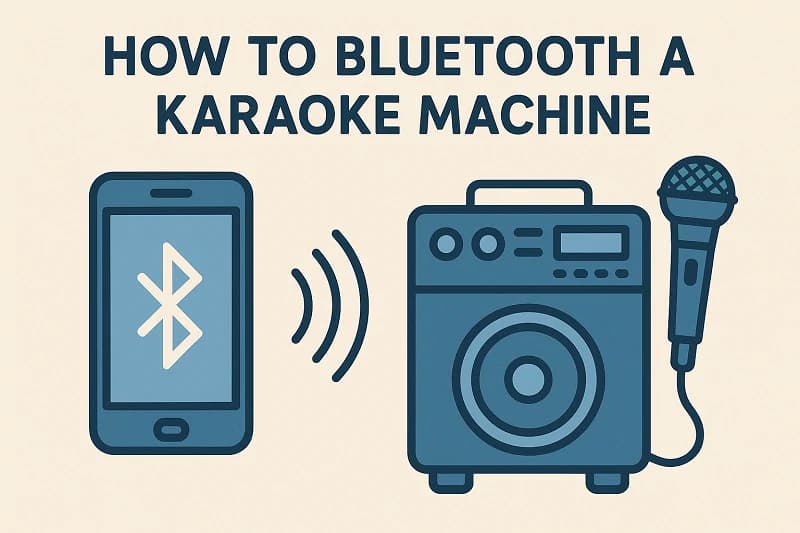
One of the best parts about modern karaoke machines is their ability to connect wirelessly via Bluetooth. This means you can stream music directly from your phone, tablet, or laptop without dealing with tangled cords or complicated setups.
But if you're asking yourself, "how do I Bluetooth my karaoke machine?", you're not alone. Whether you're setting up for a party, a family karaoke night, or just learning the ropes, this step-by-step guide will show you how to do it right — with no tech stress involved.

With K88:
And with machines like K88, the process becomes even smoother thanks to intuitive design and auto-pairing functionality.
If you're just beginning to explore karaoke at home, learning the Bluetooth setup is a great first step — and once you're connected, you’ll probably find yourself wondering:
“Why didn’t I do this sooner?”
But if you're asking yourself, "how do I Bluetooth my karaoke machine?", you're not alone. Whether you're setting up for a party, a family karaoke night, or just learning the ropes, this step-by-step guide will show you how to do it right — with no tech stress involved.
Why Bluetooth Matters in Karaoke
1. Simpler Setup, Fewer Wires
Bluetooth connection eliminates the need for AUX cables or CD-based systems. With just a few taps, you're ready to sing.2. More Music Access
Bluetooth lets you stream music from any platform — YouTube, Spotify, Apple Music — giving you access to unlimited karaoke tracks.3. Portable and Flexible
Bluetooth means you don’t need to be tethered to one spot. Sing from the couch, the backyard, or even the car (yes, some people do karaoke in road trips!).What You’ll Need Before You Start
Before connecting, make sure you have the following ready:- A Bluetooth-enabled karaoke machine
- A Bluetooth-capable device (smartphone, tablet, or computer)
- A karaoke track or playlist
- The machine powered on and set to Bluetooth mode
Step-by-Step — How to Bluetooth Your Karaoke Machine
Step 1: Turn On the Karaoke Machine
Locate the power switch and turn on your machine. Most devices with Bluetooth will automatically enter pairing mode, especially if they are newly set up.Step 2: Switch to Bluetooth Mode
Many machines require you to manually select the Bluetooth input. This could be labeled as:- "BT Mode"
- "Bluetooth"
- A Bluetooth icon (🔊📶)
Step 3: Activate Bluetooth on Your Phone or Tablet
On your device:- Go to Settings > Bluetooth
- Make sure Bluetooth is turned ON
- Wait for available devices to populate
- "K88 Speaker"
- "BT-MIC"
- Or the model number
K88 Kids Karaoke Machine Example — How Easy It Gets with User-Friendly Models
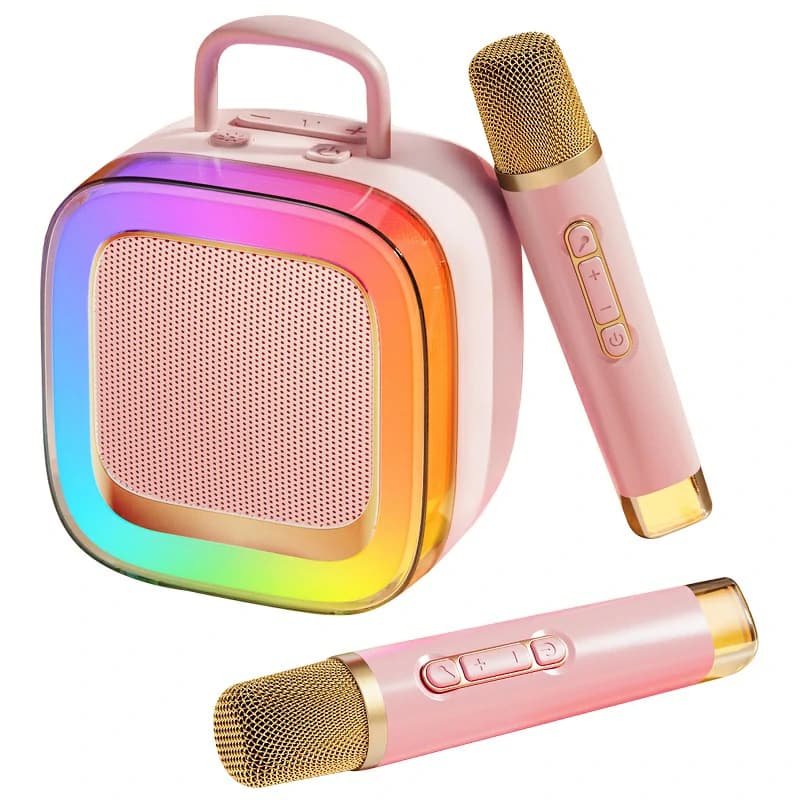
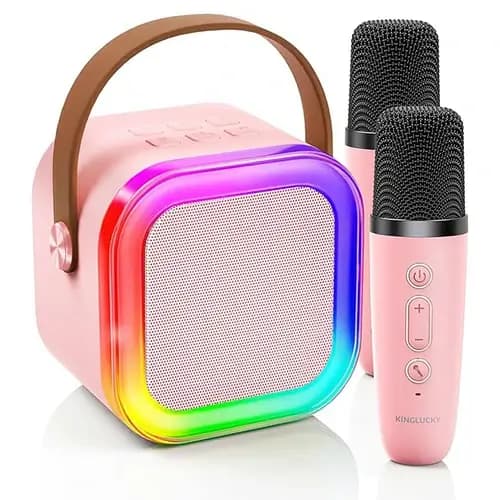
Let’s say you’re using a family-friendly model like K88, which is designed for fast and simple setup.With K88:
- Powering on the machine automatically activates Bluetooth mode
- A voice prompt confirms it's ready to pair
- On your phone, it appears as “K88-SPEAKER” — one tap connects it
- You can then stream any karaoke track from YouTube, Spotify, or saved playlists
Step 4: Start Your Music and Adjust the Sound
Once you're connected:- Open your music app and press play
- Use your karaoke machine’s volume knobs to adjust master volume and mic level
- Some devices may also let you control bass, treble, and echo effects
Troubleshooting Bluetooth Issues
If things don’t connect immediately, here are some tips:Device Not Found?
- Turn off and restart both devices
- Move closer to the karaoke machine
- Make sure the machine isn’t already paired with another phone
Audio Cutting Out?
- Check your internet connection (if streaming music)
- Avoid Bluetooth interference from nearby devices
- Try disconnecting and re-pairing
Can’t Hear Vocals?
- Make sure mic volume is up
- Check that you're not playing a “vocal-only” track
- Ensure your device volume is turned up
Tips for Better Bluetooth Karaoke Performance
1. Create a Playlist in Advance
This reduces downtime between songs and keeps the party going.2. Use a Dedicated Karaoke App
While YouTube is great, apps like Smule or Karafun may offer better sound syncing and lyrics display.3. Pair Once, Use Often
Machines like K88 remember the last connected device — meaning you can reconnect instantly next time.FAQ — How to Bluetooth a Karaoke Machine
Q1: Can all karaoke machines use Bluetooth?
No. Only models that specifically include Bluetooth will support wireless connection. Check the product specs or look for a Bluetooth symbol on the device.Q2: Can I connect multiple devices via Bluetooth?
Most karaoke machines only support one Bluetooth connection at a time. You’ll need to disconnect one device before pairing another.Q3: Will Bluetooth affect sound quality?
In most cases, no. For casual use, Bluetooth audio is more than sufficient for karaoke. However, if you're an audiophile, wired options may offer marginally better fidelity.Q4: Can I still use microphones when streaming via Bluetooth?
Yes. The Bluetooth handles music input, while the mics transmit directly into the system’s sound mixer.Q5: Do I need Wi-Fi to use Bluetooth?
No. Bluetooth is a direct wireless connection — it doesn’t rely on internet access.Final Thoughts — Why Bluetooth Makes Karaoke Easier Than Ever
Figuring out how to Bluetooth a karaoke machine is one of the simplest ways to unlock hours of fun with minimal setup. No tangled wires, no audio mismatches, no complicated instructions — just pair, play, and sing.And with machines like K88, the process becomes even smoother thanks to intuitive design and auto-pairing functionality.
If you're just beginning to explore karaoke at home, learning the Bluetooth setup is a great first step — and once you're connected, you’ll probably find yourself wondering:
“Why didn’t I do this sooner?”
Recommended Products