How to Connect Mini Karaoke Machine to Your Phone
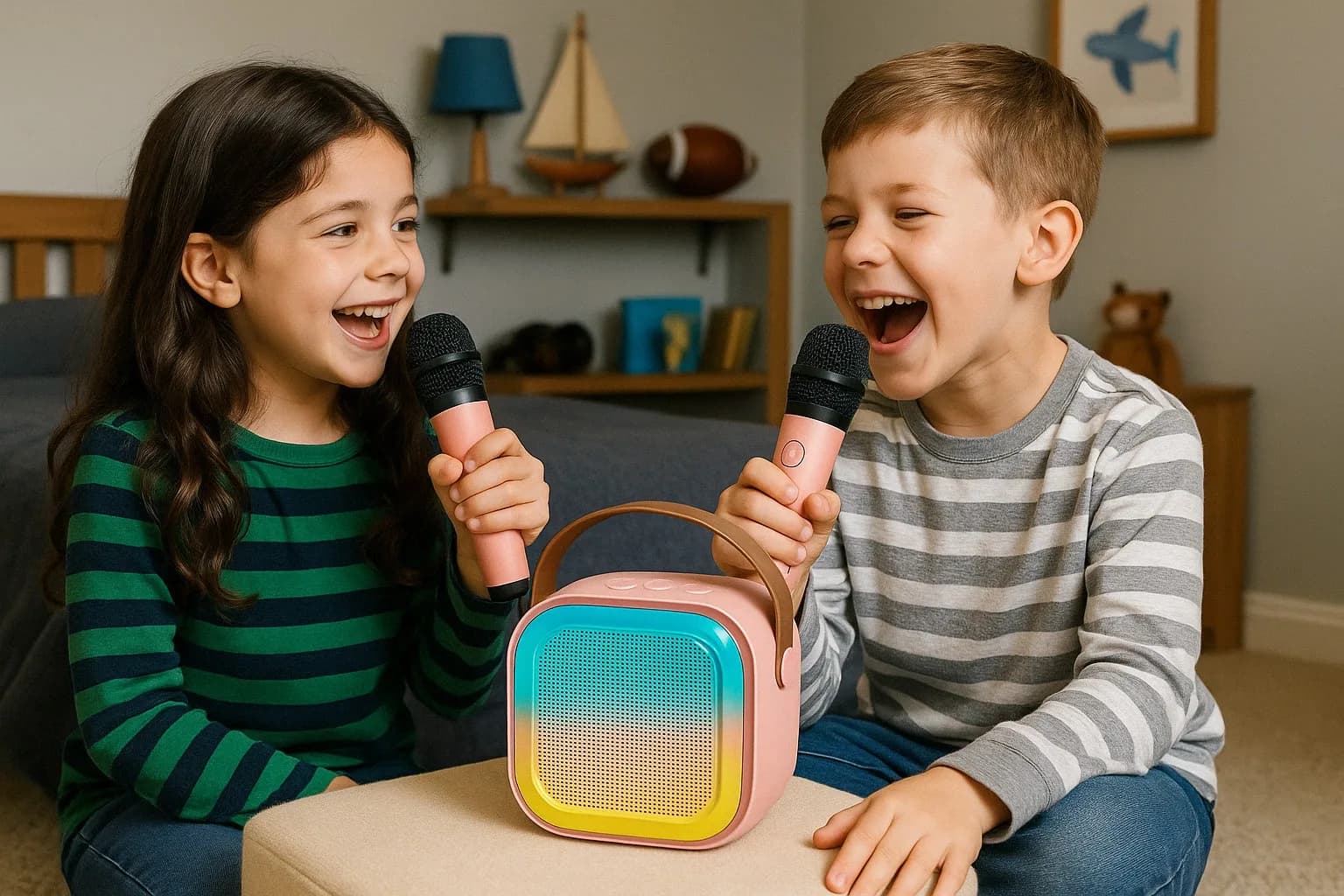
Mini karaoke machines are compact, fun, and perfect for on-the-go entertainment. Whether you’re at home, in the backyard, or on a weekend trip, these little devices are designed to deliver big sound in small spaces. But one question that often comes up is: how to connect a mini karaoke machine to phone?
The answer is simpler than you might think. In this guide, we’ll walk you through several connection methods, offer troubleshooting tips, and explain how the right mini karaoke machine can make the whole process smoother — especially when you’re using it with kids.

The answer is simpler than you might think. In this guide, we’ll walk you through several connection methods, offer troubleshooting tips, and explain how the right mini karaoke machine can make the whole process smoother — especially when you’re using it with kids.
Why Connect a Mini Karaoke Machine to Your Phone?
Most music today lives on your phone — whether it’s in a playlist, a karaoke app, or a YouTube video. Connecting your phone to a mini karaoke machine allows you to:- Stream karaoke tracks from apps or websites
- Access personalized playlists
- Use voice assistant features
- Control volume and song selection easily
Method 1: Connect via Bluetooth (Most Common)
Step-by-Step:- Turn on your mini karaoke machine and activate Bluetooth pairing mode (often triggered by holding the “Mode” or “Bluetooth” button).
- On your phone, go to Bluetooth settings and search for available devices.
- Select your machine from the list (it may appear as “Karaoke” or a model number).
- Wait for the “connected” confirmation sound or light indicator.
- Open your music app and press play — the sound should now come through the speaker.
- Keep the phone within 5–10 meters of the device for best signal.
- Make sure no other Bluetooth device is already connected.
- If no sound comes through, check your phone’s media volume.
Method 2: Connect via AUX Cable
If your mini karaoke machine has a 3.5mm AUX input:- Plug one end of the AUX cable into your phone’s headphone jack (you may need an adapter for newer phones).
- Plug the other end into the AUX port on the mini karaoke machine.
- Set the machine to AUX mode (usually by pressing the Mode button until AUX is displayed or heard).
- Play your audio — sound will pass directly into the machine.
Why choose AUX?
- No latency or pairing issues
- Works with older devices or when Bluetooth is unavailable
Method 3: Use a USB or TF Card (Preloaded Content)
Some mini karaoke machines allow music playback from USB drives or TF cards:- Load karaoke tracks onto a USB drive or TF card.
- Insert it into the appropriate port on the mini karaoke machine.
- Use buttons to switch between tracks or modes.
Troubleshooting Tips
- If your mini karaoke machine isn’t pairing with your phone, restart both devices and try again.
- If audio is lagging via Bluetooth, try switching to AUX mode.
- If volume is low, check both your phone’s volume and the machine’s speaker settings.
Example: Using the K12 Mini Karaoke Machine with Your Phone
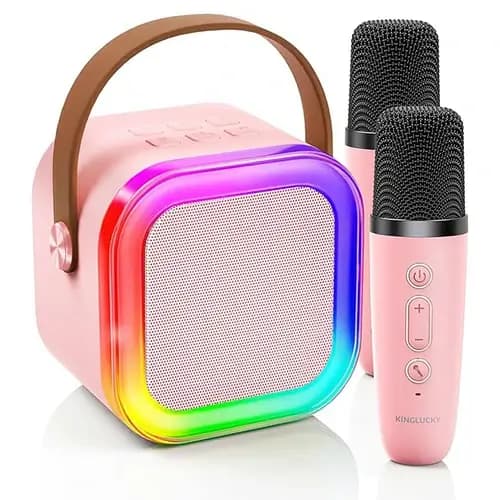
Let’s take a real-world example. Suppose you're using a compact, family-friendly unit like the K12 mini karaoke machine. The process of connecting to your phone becomes even easier:- Turn on the K12 and press the mode button until you hear “Bluetooth Mode.”
- Open Bluetooth settings on your phone and tap “K12.”
- Wait for a soft chime — that’s the signal it’s connected.
- Open YouTube or your favorite karaoke app and press play. Now your living room becomes a stage.
Why Simplicity Matters — Especially for Kids
Learning how to connect mini karaoke machine to phone shouldn’t require a tech background. The simpler the process, the more likely your children are to use the machine independently. Whether they’re hosting a mini concert, practicing vocals, or just having fun, a smooth setup helps keep the focus on creativity — not on troubleshooting.Produits recommandés