
How to Use a Live Sound Card?
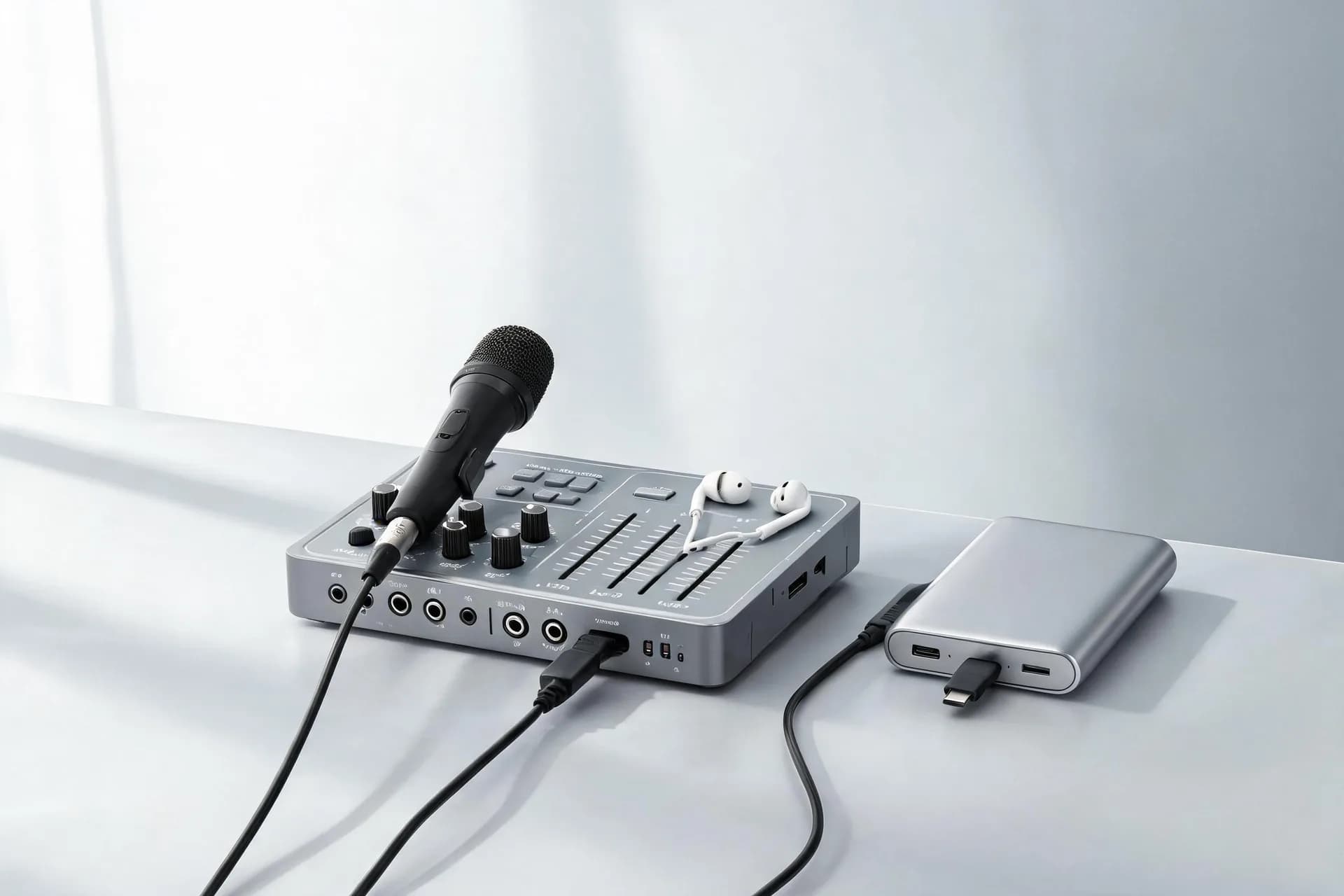
Are you ready to take your audio game to the next level? Whether you're a podcaster, a musician, or just someone who loves tinkering with sound, learning how to use a live sound card could be a game-changer. It may seem like a daunting task at first (so many knobs, dials, and ports!), but trust me, it's easier than it looks. Plus, once you’ve got the hang of it, your sound quality will skyrocket, and your live performances will shine.
 A live sound card serves as the fundamental link between your audio sources (such as microphones or instruments) and your computer or recording system. It transforms analog audio signals into digital data and back again. This essential tool enhances audio quality for professionals across various fields including podcasting, music, and streaming.
Importance of Live Sound Cards
 The primary function of a live sound card is signal conversion, converting analog signals from your microphone or instrument into digital signals suitable for computer processing. It enables real-time processing, enhancing audio quality significantly compared to built-in sound cards. Additionally, it provides greater control over sound levels during live events or recordings.
While both types manage audio input and output, their purposes differ significantly. Regular sound cards, typically integrated into computers, cater to basic audio needs while live sound cards are designed for professional audio production, handling complex tasks like real-time sound processing, live streaming, or studio recording. Live sound cards offer superior sound quality, customization options, and low latency, making them indispensable for achieving professional audio quality in live settings.
Prerequisites for Using a Live Sound Card
 To utilize a live sound card, you require specific equipment:
1. Live Sound Card: Choose a model like the Kinglucky C18 or V20Pro, offering advanced features like DSP noise reduction, Dolby audio, and multi-microphone support.
2. Microphones:
Dynamic microphones: Ideal for live performances due to durability and resistance to ambient noise.
Condenser microphones: Requiring phantom power (typically 48V), these microphones work well with live sound cards for studio-quality recordings.
3. Instruments or Other Audio Inputs: Musicians can connect their guitars, keyboards, or other instruments directly to the live sound card.
4. Computer or Recording Device: Connect your sound card to your computer via USB for audio recording or streaming.
5. Speakers or Headphones: Monitor the audio through these devices connected to the sound card’s output jacks.
Installation Guide:
Having gathered all the required equipment, follow this guide to install the sound card seamlessly.
Step 1: Examine the Kit
Unwrap your sound card and confirm all components (card, USB cable, driver software, if provided), checking for any physical defects.
Step 2: Connect the Card to Your PC
Connect the sound card to your computer via USB (or compatible interface like FireWire or Thunderbolt).
Ensure the card has an external power source, if required.
Step 3: Install Drivers and Software
Driver installation is essential for optimum performance. Follow the instructions provided with the card or download updated versions from the manufacturer's site.
Step 4: Connect Mics and Instruments
For microphones: Attach condenser or dynamic mics to the input jacks using XLR cables.
For instruments: Plug your guitar, keyboard, etc., directly into the card's input using 1/4" TRS cables.
Step 5: Adjust Card Settings
Phantom Power: For condenser mics, enable 48V phantom power on the card.
Gain Control: Adjust the gain to prevent overloading or underpowering the signal (to avoid distortion).
Effects: Some cards, like the Kinglucky V20Pro, feature built-in effects like noise reduction or reverb which can be adjusted to enhance your audio.
Step 6: Connect Monitors
Attach headphones or speakers for real-time sound monitoring.
Step 7: Test the System
Record a sample or conduct a sound check to verify functionality. Adjust settings as required.
Effective Use of a Live Sound Card
Post-installation, the fun part begins - utilizing your live sound card! Here's how to optimize its usage:
Settings Adjustment:
Gain: Ensure your gain setting is balanced. Overload results in distortion, while underpowering causes quietness. Aim for signal peaks slightly below the red zone.
Effects: Depending on your card, utilize built-in effects like reverb, echo, or noise reduction judiciously to enhance your sound.
Equalizer: Most cards have an EQ allowing frequency adjustment. Tailor the lows, mids, and highs according to your voice or instrument.
Real-Time Monitoring:
A key advantage of live sound cards is real-time monitoring. This enables immediate sound adjustments.
Live Streaming:
As a streamer, configure your live sound card as the audio input device in your streaming software. Many cards, like the Kinglucky V20Pro, support multi-platform streaming.
Kinglucky C18 Live Sound Card
 DSP Noise Reduction: Guarantees near-zero latency for crystal-clear audio.
Dolby Surround: Offers immersive audio experience with KTV and stereo effects.
Bluetooth Integration: Facilitates wireless audio for easy setup and performance.
Kinglucky V20Pro Live Sound Card
 48V Phantom Power: Provides professional studio-quality recordings.
Noise Reduction: Ideal for live streaming in noisy environments.
Multi-Microphone Support: Supports up to two 5V condenser mics and one dynamic mic for group performances.
Three-Chip Performance: Enhances processing for precise sound optimization and minimal interference.
Both these live sound cards cater to content creators, musicians, and live streamers seeking superior sound quality.
In conclusion, using a live sound card needn't be daunting. With correct setup, appropriate tools, and practice, you'll soon produce professional-level audio. Opting for the Kinglucky C18 for its simplicity or the V20Pro for its comprehensive features, you're embarking on a journey towards audio excellence.
What Is a Live Sound Card?
Importance of Live Sound Cards
Comparison between Live and Regular Sound Cards
While both types manage audio input and output, their purposes differ significantly. Regular sound cards, typically integrated into computers, cater to basic audio needs while live sound cards are designed for professional audio production, handling complex tasks like real-time sound processing, live streaming, or studio recording. Live sound cards offer superior sound quality, customization options, and low latency, making them indispensable for achieving professional audio quality in live settings.
Prerequisites for Using a Live Sound Card
1. Live Sound Card: Choose a model like the Kinglucky C18 or V20Pro, offering advanced features like DSP noise reduction, Dolby audio, and multi-microphone support.
2. Microphones:
Dynamic microphones: Ideal for live performances due to durability and resistance to ambient noise.
Condenser microphones: Requiring phantom power (typically 48V), these microphones work well with live sound cards for studio-quality recordings.
3. Instruments or Other Audio Inputs: Musicians can connect their guitars, keyboards, or other instruments directly to the live sound card.
4. Computer or Recording Device: Connect your sound card to your computer via USB for audio recording or streaming.
5. Speakers or Headphones: Monitor the audio through these devices connected to the sound card’s output jacks.
Installation Guide:
Having gathered all the required equipment, follow this guide to install the sound card seamlessly.
Step 1: Examine the Kit
Unwrap your sound card and confirm all components (card, USB cable, driver software, if provided), checking for any physical defects.
Step 2: Connect the Card to Your PC
Connect the sound card to your computer via USB (or compatible interface like FireWire or Thunderbolt).
Ensure the card has an external power source, if required.
Step 3: Install Drivers and Software
Driver installation is essential for optimum performance. Follow the instructions provided with the card or download updated versions from the manufacturer's site.
Step 4: Connect Mics and Instruments
For microphones: Attach condenser or dynamic mics to the input jacks using XLR cables.
For instruments: Plug your guitar, keyboard, etc., directly into the card's input using 1/4" TRS cables.
Step 5: Adjust Card Settings
Phantom Power: For condenser mics, enable 48V phantom power on the card.
Gain Control: Adjust the gain to prevent overloading or underpowering the signal (to avoid distortion).
Effects: Some cards, like the Kinglucky V20Pro, feature built-in effects like noise reduction or reverb which can be adjusted to enhance your audio.
Step 6: Connect Monitors
Attach headphones or speakers for real-time sound monitoring.
Step 7: Test the System
Record a sample or conduct a sound check to verify functionality. Adjust settings as required.
Effective Use of a Live Sound Card
Post-installation, the fun part begins - utilizing your live sound card! Here's how to optimize its usage:
Settings Adjustment:
Gain: Ensure your gain setting is balanced. Overload results in distortion, while underpowering causes quietness. Aim for signal peaks slightly below the red zone.
Effects: Depending on your card, utilize built-in effects like reverb, echo, or noise reduction judiciously to enhance your sound.
Equalizer: Most cards have an EQ allowing frequency adjustment. Tailor the lows, mids, and highs according to your voice or instrument.
Real-Time Monitoring:
A key advantage of live sound cards is real-time monitoring. This enables immediate sound adjustments.
Live Streaming:
As a streamer, configure your live sound card as the audio input device in your streaming software. Many cards, like the Kinglucky V20Pro, support multi-platform streaming.
Sound Card Recommendations
Kinglucky C18 Live Sound Card
Dolby Surround: Offers immersive audio experience with KTV and stereo effects.
Bluetooth Integration: Facilitates wireless audio for easy setup and performance.
Kinglucky V20Pro Live Sound Card
Noise Reduction: Ideal for live streaming in noisy environments.
Multi-Microphone Support: Supports up to two 5V condenser mics and one dynamic mic for group performances.
Three-Chip Performance: Enhances processing for precise sound optimization and minimal interference.
Both these live sound cards cater to content creators, musicians, and live streamers seeking superior sound quality.
In conclusion, using a live sound card needn't be daunting. With correct setup, appropriate tools, and practice, you'll soon produce professional-level audio. Opting for the Kinglucky C18 for its simplicity or the V20Pro for its comprehensive features, you're embarking on a journey towards audio excellence.