How to Connect Portable Karaoke to TV
Introduction to Portable Karaoke Systems
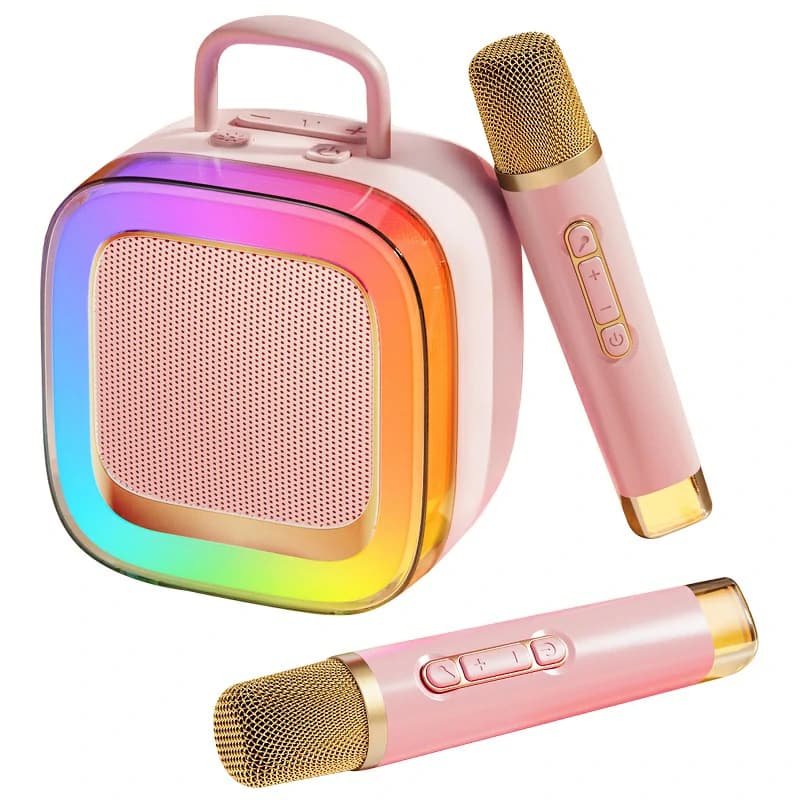
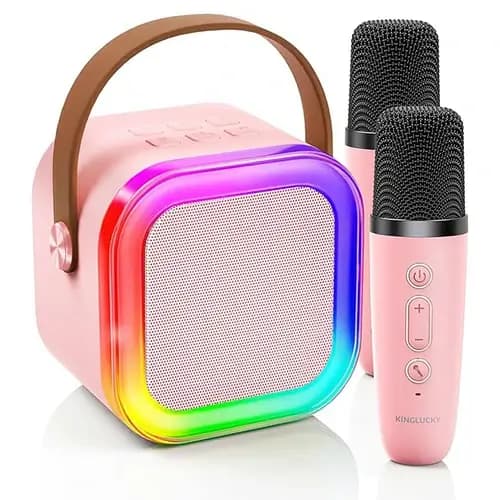
Portable karaoke systems have revolutionized how we enjoy music at home, in parties, or even outdoors. Whether you’re singing solo or hosting a group event, these compact audio devices bring fun and convenience to your fingertips. Brands like Kinglucky, known for their stylish and powerful portable karaoke speakers, make singing sessions effortless with wireless microphones and high-quality sound output.
Connecting your portable karaoke to a TV enhances the experience dramatically — transforming any living room into a mini concert hall.

Why Connect Your Karaoke to a TV?
Linking your karaoke to a TV is more than just about sound. It’s about creating a complete audiovisual experience.
Here are the top reasons:
-
Bigger Screen for Lyrics: Reading lyrics on a 55-inch TV is much easier than squinting at your phone.
-
Better Sound Control: You can route audio through your TV’s speakers or a soundbar for richer sound.
-
Party Vibes: Displaying karaoke visuals makes it feel like a professional setup.
-
App Compatibility: Smart TVs allow you to stream karaoke videos from YouTube or apps like KaraFun or Smule.
Components You’ll Need Before Connecting
Before we dive into how to connect your portable karaoke to a TV, make sure you have:
-
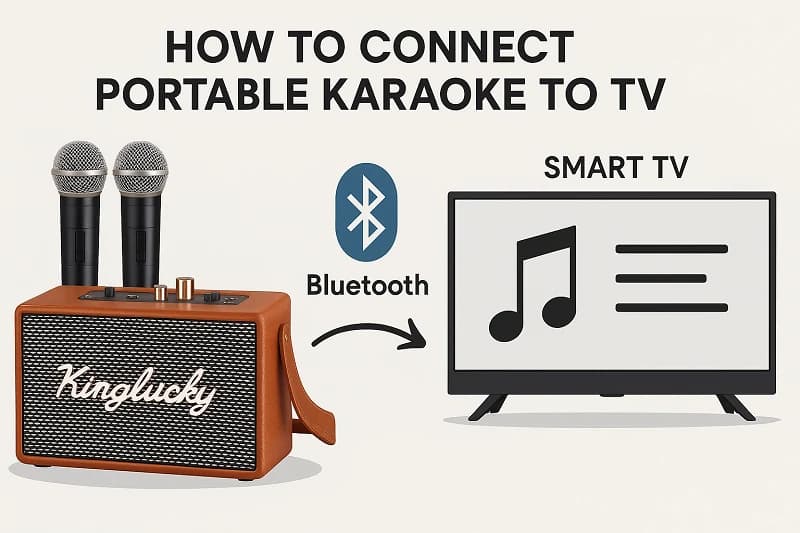
A portable karaoke speaker (like the Kinglucky model shown above)
-
Wireless or wired microphones
-
Smart TV or regular TV with HDMI/AUX/RCA ports
-
Bluetooth or audio cables
-
A stable power source
Check Compatibility Between Karaoke & TV
Different TVs support different connection methods.
Here’s a quick compatibility table:
| TV Type | Connection Options |
|---|---|
| Smart TV (Wi-Fi + Bluetooth) | Bluetooth, HDMI |
| Standard Flat Screen TV | HDMI, AUX, RCA |
| Older CRT TV | RCA only |
| Soundbar Integration | Optical, AUX, or Bluetooth |
Step-by-Step: How to Connect Portable Karaoke to TV via Bluetooth
-
Power on your portable karaoke system.
-
Switch to Bluetooth Mode (usually marked as “BT” or “Pair”).
-
On your TV, open the Bluetooth settings and select Add New Device.
-
Wait for your karaoke device name (e.g., Kinglucky Karaoke) to appear.
-
Select it and confirm the pairing.
-
Once connected, play a karaoke video on YouTube — your TV’s audio will stream through the karaoke speaker.
💡 Pro Tip: Always keep your karaoke speaker within 5–10 meters of your TV to avoid signal dropouts.
Troubleshooting Bluetooth Connection
If your karaoke doesn’t show up:
-
Make sure it’s in pairing mode (LED light blinking).
-
Restart both the karaoke and TV.
-
Forget old Bluetooth devices from your TV list.
-
Try pairing via your phone first to confirm the karaoke’s Bluetooth works.
Connecting Using AUX or RCA Cables
For TVs without Bluetooth:
-
Plug the AUX cable into your TV’s headphone or audio-out port.
-
Connect the other end to your karaoke’s audio-in jack.
-
Switch your karaoke to Line-In Mode.
-
Play a karaoke video — you’ll now get sound from the karaoke speaker.
If your TV uses RCA (red and white) outputs, use an RCA-to-AUX converter cable.
Audio Input & Output Settings on TV
To ensure proper sound transmission:
-
Set your TV’s audio output to “External Speaker” or “Headphones.”
-
Adjust sound levels — TV at 50%, karaoke at 70% is a good start.
-
Test with a karaoke track before your party begins.
HDMI or Optical Cable Connection Options
Modern karaoke systems may feature HDMI ARC or optical input.
These provide digital sound with almost no delay — perfect for live singing.
Steps:
-
Connect HDMI/optical cable from TV to karaoke speaker.
-
Select the correct source (HDMI or Optical) on your karaoke.
-
Adjust TV settings to route sound output through the external device.
How to Connect Microphones for Dual Singers
If your karaoke system includes two wireless microphones (like the Kinglucky model), simply:
-
Turn on both microphones.
-
Ensure each is synced to a different frequency channel.
-
Adjust echo, treble, and volume using the knobs on the speaker.
🎤 Bonus Tip: Keep mics 10–15 cm from your mouth for clear vocals.
Using Karaoke Apps with Your TV Setup
Compatible platforms include:
-
YouTube Karaoke Channels
-
KaraFun (subscription-based)
-
Smule (mobile + TV streaming)
-
WeSing or StarMaker apps
Most Smart TVs allow you to cast directly from your smartphone.
How to Enhance Your Karaoke Party Experience
-
Use LED string lights or disco lamps.
-
Prepare a theme (e.g., 80s night, pop battle).
-
Create playlists on YouTube in advance.
-
Offer small prizes for best performance.
Troubleshooting Common Issues
| Problem | Possible Cause | Solution |
|---|---|---|
| No Sound | Wrong input mode | Switch to AUX/Bluetooth mode |
| Bluetooth disconnects | Too far from TV | Move closer |
| Mic delay | Audio latency | Use wired connection or HDMI |
| Echo too high | Settings issue | Adjust echo knob lower |
Maintenance Tips for Your Portable Karaoke System
-
Store in a cool, dry place.
-
Charge the battery fully before long periods of storage.
-
Clean mic grilles with dry cloth.
-
Avoid exposing to direct sunlight or water.
FAQs about Connecting Portable Karaoke to TV
Q1: Can I connect portable karaoke to a non-smart TV?
Yes, using RCA or AUX cables.
Q2: Why is there no sound after connecting via Bluetooth?
Check if your TV’s output device is set to Bluetooth speaker.
Q3: How can I connect multiple microphones?
Use the built-in dual wireless receiver or plug in a wired mic.
Q4: Is HDMI better than Bluetooth for karaoke?
Yes, HDMI offers lower latency and better audio quality.
Q5: Can I use my karaoke as a TV speaker?
Yes, many portable karaoke units double as Bluetooth speakers.
Q6: Does Kinglucky karaoke work with all TVs?
It’s compatible with most modern TVs that support Bluetooth, AUX, or HDMI.
Conclusion & Expert Recommendations
Connecting your portable karaoke to a TV is easier than ever — whether through Bluetooth, AUX, or HDMI.
Models like the Kinglucky Portable Karaoke System deliver premium sound and stylish design, making every home performance memorable.
👉 For more details or to explore Kinglucky’s latest models, visit the official Kinglucky store (external link).
Recommended Products